
Connect HYDROS to TankSensei
TankSensei connects through CoralVue's official HYDROS API. You create a key in the HYDROS app. It lets TankSensei read your tank's data, never change it, and you can turn it off any time.
What you get
- Temperature, pH, salinity and alkalinity recorded automatically, so you don't have to log them by hand.
- A live HYDROS tile on your Home screen with your probe readings.
- Alerts on your phone when a reading leaves your range (once you turn on notifications in the app), and by email when it's serious.
TankSensei records temperature, pH, salinity and alkalinity from HYDROS. ORP shows on the live tile but isn't saved to your history yet. Water level, leak sensors, outlets and dosers aren't read through a key yet.
Before you start
- The HYDROS app on your phone, with your controller online.
- A TankSensei account with your tank added.
Set it up
About two minutes.
-
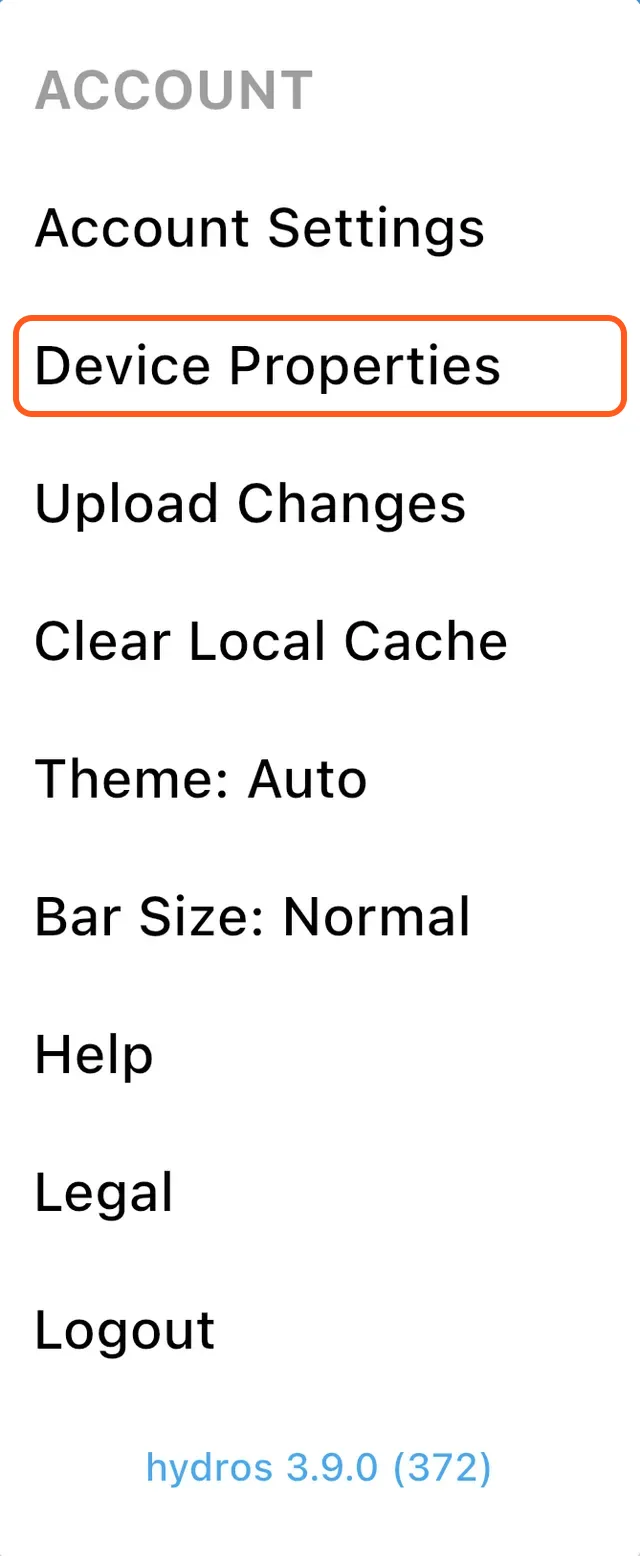
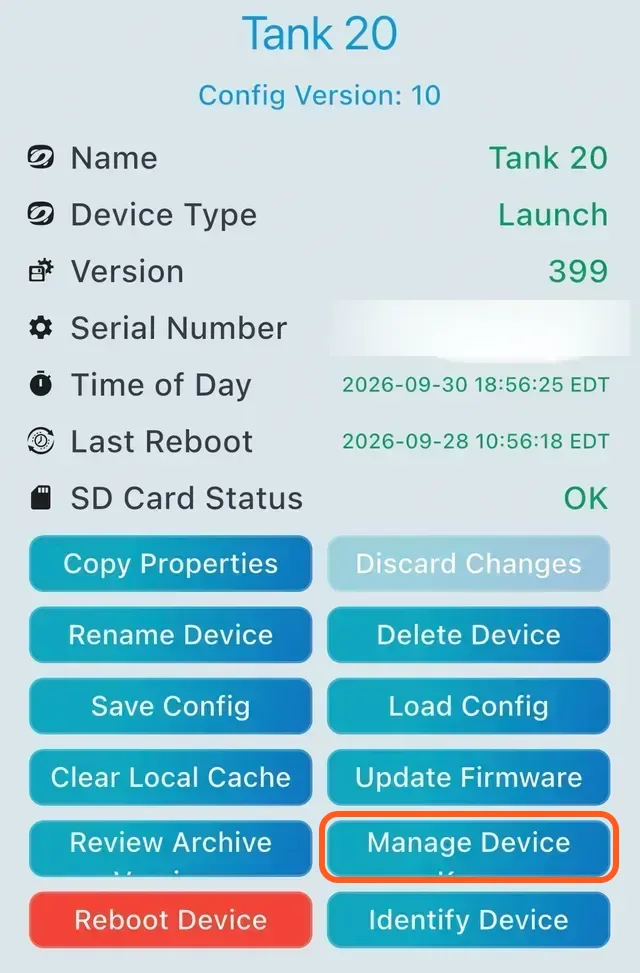
In the HYDROS app, open Device Keys
Open the account menu, tap Device Properties, then Manage Device Keys. If your controllers are in a Collective, make the key on the Collective, so one key covers them all.
-
Tap + and pick TankSensei
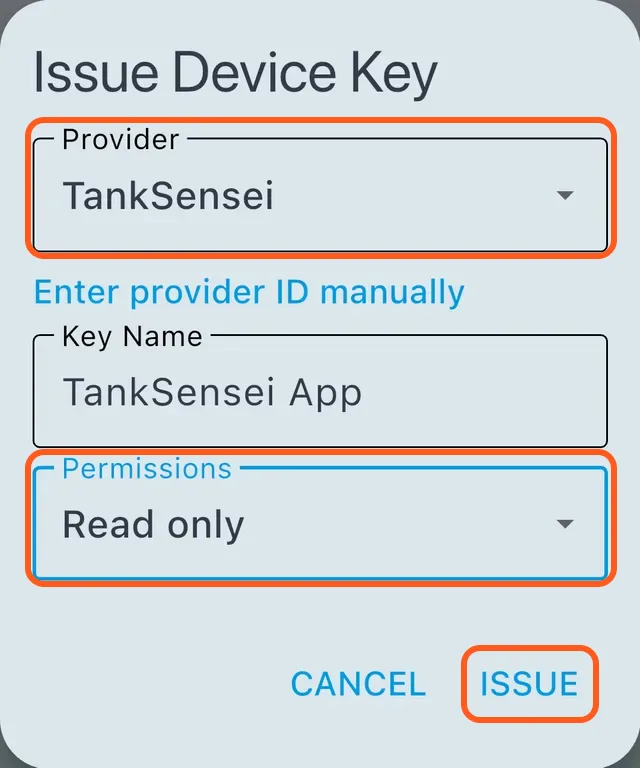
Choose TankSensei from the Provider list.
-
Name it and set Read only
Give it a name you'll recognise, like "TankSensei", and set Permissions to Read only. TankSensei only reads your data. It never changes your controller.
-
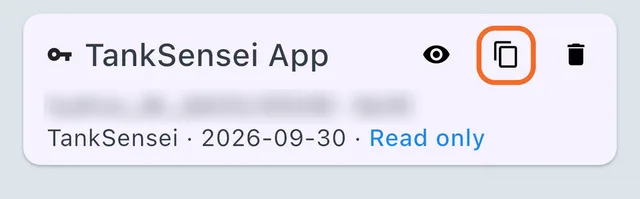
Tap Issue and copy the key
Your new key shows in the list. Tap the copy button beside it.
-
Paste it in TankSensei
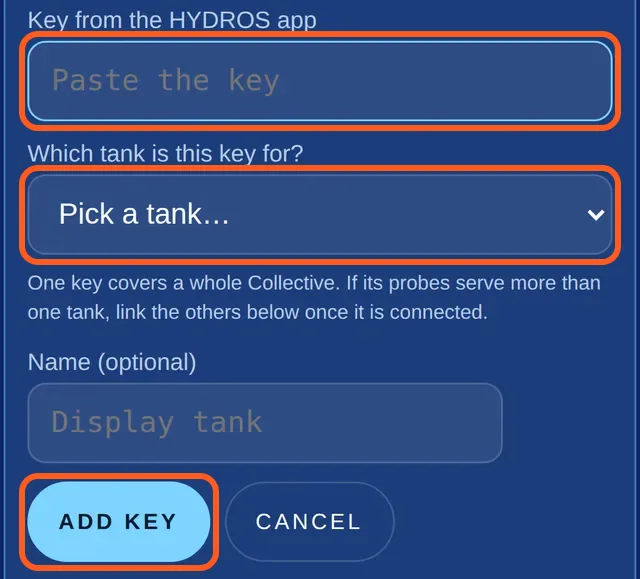
In TankSensei, open Account, then Connect HYDROS. Paste the key and, if you have more than one tank, pick the one it belongs to. Open Connect HYDROS
Done
Your first readings show up within a few minutes. Alerts from HYDROS start once a reading has a day of history behind it, so a brand-new connection doesn't set off false alarms. Keep your HYDROS's own alarms on, as always.
If one Collective runs more than one of your tanks, or has two probes of the same kind, TankSensei asks which probes belong to each tank: open the tank's Settings, then Equipment, then HYDROS controller. Readings start once you pick.
One key per Collective
If your HYDROS controllers are in one Collective, one key covers them all. A controller that isn't in a Collective needs its own key. Add each key in TankSensei and pick its tank.
Switching from the old connection
If you connected HYDROS before, with your CoralVue email and password, it keeps working for now. Switch to a key when you have two minutes: follow the steps above, check that each tank's HYDROS panel says "Connected with a HYDROS key", then tap Remove password link in Account, Connect HYDROS. TankSensei deletes the CoralVue password you gave it when you remove the link.
Troubleshooting
TankSensei isn't in the provider list.
Update the HYDROS app. If you still don't see it, tap "Enter provider ID manually" and enter TankSensei.
The key doesn't work.
Make sure you copied the whole key and that it hasn't been deleted in the HYDROS app. Create a new one if you're not sure.
No data yet.
Check that your controller is online in the HYDROS app, then give it a few minutes. If the tank's HYDROS controller settings ask you to pick probes, readings start once you do.
I want to disconnect.
Remove the key in TankSensei under Account, Connect HYDROS, then delete it in the HYDROS app. Either one stops access straight away; if you delete it in the HYDROS app first, TankSensei sends you one notice that the readings stopped.
Questions
Does it cost anything?
No. Connecting HYDROS to TankSensei is free.
Can TankSensei change my settings or run my dosers?
No. TankSensei only reads your data.
Do you share my data?
We don't sell your data or share it for advertising. The Privacy Policy lists the services that help run TankSensei.
Do I need a HYDROS to use TankSensei?
No. Test kits alone are enough. HYDROS just fills in some readings for you.